IT & AIRemote work & collaboration
Remote working, remote access and protection systems
· Michel Aguilera
In the previous article, we talked about remote working solutions. In the vast majority of cases, the methods used to access company resources must meet certain security standards. We are going to explain what means exist and how to properly protect your computer or electronic work device in all circumstances, and make everyone take responsibility. An overview of security… for everyone!
Connected, and protected!
We all use devices that connect to the internet, whether for leisure or for remote working. For companies, limiting the IT risks linked to remote working requires concrete measures and technical solutions. It is important to recall a few basic security principles.
- Authenticate remote access. The first way to prevent an outside intrusion into the company’s system is to introduce an identification system for remote workers when they connect to it (username, password, one-time code…).
- Separate and protect devices. Beyond an anti-virus protection system, the simplest way to avoid the risk of contamination between the employee’s hardware and the company’s IT system is still to reduce administration rights on the machine as much as possible. And therefore to give the remote worker a PC for strictly professional use, regularly updated – in terms of security – by the IT department. When employees use their own computer equipment, it is their duty to make sure that security (both the network perimeter and locally on their machine) is ensured.
- Secure access to data. To secure the flow of information between the workstation and the company network, it is also possible to use a VPN (Virtual Private Network), even though this connection model has less and less reason to exist with the development of the cloud. Setting up a virtual desktop platform makes it possible to access the company’s sensitive data from anywhere and on any device, without being directly physically connected to it. The cloud solution makes it possible to decouple authentication for using the workstation, which is always difficult to protect, from authentication for accessing sensitive information. In the end, what matters is securing the stored data that will be transferred.
- Use secure networks. If you work from home, make sure that either your workstation is equipped with a properly configured local firewall or your internet connection is behind a physical firewall (sometimes built into the router supplied by your internet provider). Don’t forget that your Wi-Fi must also be secured (use WPA or WPA2 to protect access to the wireless network).
To properly understand how remote working works, I invite you to look again at the previous article and to take a look at the following video:
It is important to make remote workers aware of IT risks. We are now going to see how to protect the various aspects of your remote working environment. Let’s start with an important element: antivirus protection.
In the vast majority of cases, computers running recent operating systems (Windows 10, MacOS Catalina, etc.) have local protection, but from a security perspective, this is not enough. Experts recommend using what are called Next-Gen Endpoint Agents, i.e. so-called “intelligent” antivirus agents, or agents coupled with artificial intelligence. Here is Microsoft’s solution, ATP. It is a solution that can run on Windows as well as on Mac. Video presentation (in English):
and a more complete technical approach in this video (in English):
Of course, these are solutions offered for businesses. For private individuals, there are suitable products with an optimal level of protection. One example is the company Cylance. For a modest annual price, it covers up to 10 private computers (yours, your children’s or those of other family members). You can regularly check which solutions are the best rated in terms of protection by independent testing laboratories, such as https://www.av-test.org/en/antivirus/
Microsoft also offers coverage for the data side, mainly if you work with the Office 365 cloud solutions. The Enterprise Mobility Suite product line covers precisely these points. General presentation video (in English):
Let’s talk about security related to access to your computer. When you need to log on to your computer, you use your username and password. This last element is precisely the point hackers will be able to work on in order to log on to your machine. For some time now, it has been possible to use so-called two-factor solutions (a combination of username + password + a special code, or biometrics).
When it comes to biometrics, fingerprint and facial recognition have become affordable technologies that are easy to set up. The Mac world is not to be outdone, since MacBook Pros use biometrics (fingerprint, called TouchID). A short explanatory video:
There are also third-party fingerprint readers that work with both Windows and Mac, at prices starting from around 30€.
We are going to look at another aspect: how do you secure your computer’s hard drive? We have installed an antivirus and secure access to our session, but the hard drive can be removed and stolen! How can you protect yourself against this and prevent sensitive data from being recovered? By encrypting the hard drive or our USB sticks. A short educational video on using Windows BitLocker technology:
And FileVault technology on MacOS, similar to BitLocker:
As you can see, setting it up is, all things considered, fairly simple. It is found in all operating systems and guarantees the security of the data stored on your hard drives.
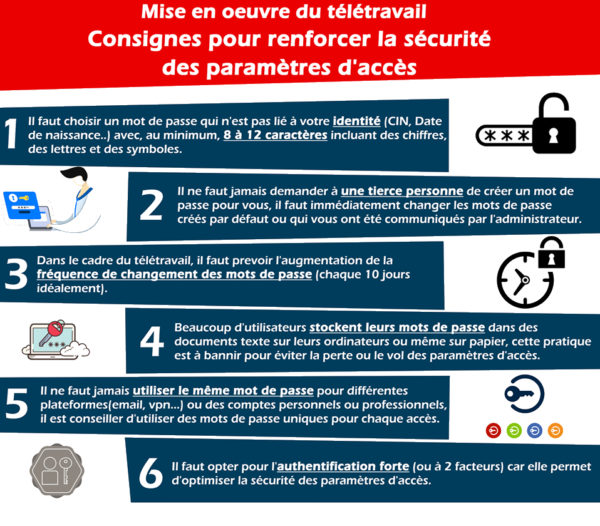
I would like to end this article with a recurring problem: password management. We all have trouble remembering passwords (whether to access our favourite websites or for our various other logins). As a reminder of good password practices: https://www.cybermalveillance.gouv.fr/tous-nos-contenus/bonnes-pratiques/51
And as for password management solutions, let’s look at a few possible managers. One of the best known (and free!) is Keepass. Training video:
Here is a small illustration as a reminder of some good practices:
And for a commercial, cross-platform product that also works on mobiles, I recommend 1Password. More information on its YouTube channel
In short, are we bulletproof?
If everyone takes responsibility for IT security, we can look forward to comfort and peace of mind in the future. Nevertheless, you must regularly check (or have someone check) that everything is in order and up to date (don’t hesitate to ask specialists in the field). Security is everyone’s responsibility, and we must always make sure we have all the necessary protections.